Patient operations is a tab under Admin for actions that affect all patients in an organisation at once, rather than one patient at a time. It is available to you if you have administrator access and the patient module is enabled.
Some of these operations are final and cannot be reverted, so we suggest using caution when working here.
Everything on this tab applies to the organisation you are currently working in, which you can check by looking at your active role in the top righthand corner. If you administer several organisations, you should check which one you are in before you begin.
At the top of the tab you will see the total number of patients in the organisation. If there are none, the actions are hidden and the tab shows No patients in organisation.
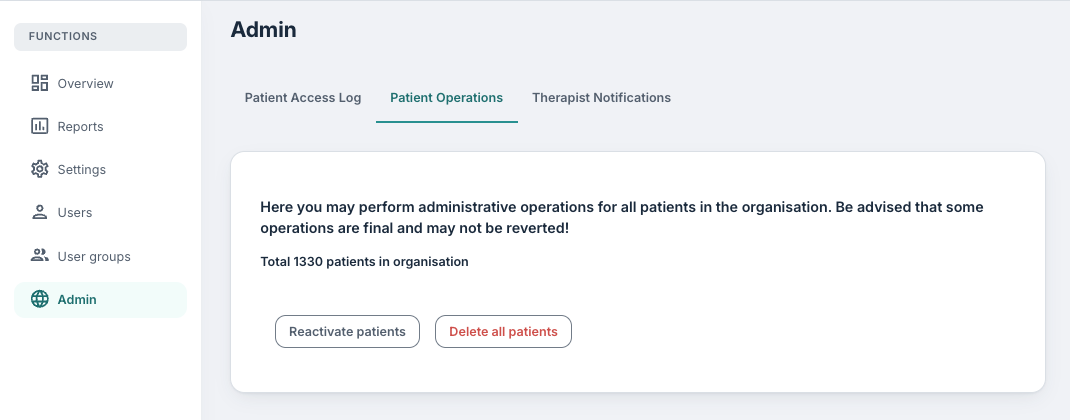
Reactivate patients
This lists patients who have been deactivated, so you can switch them back on. Deactivating a patient does not delete anything, so this is fully reversible in both directions.
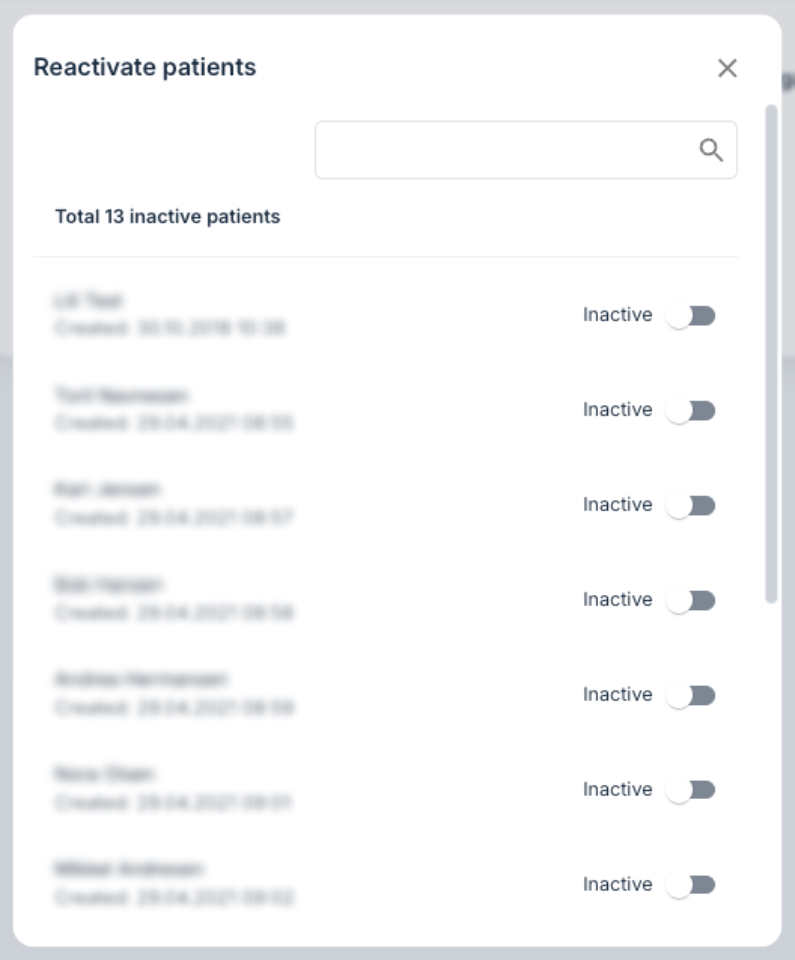
Choose Reactivate patients to open a popup containing a list of inactive patients, meaning those have been deactivated by a user. (Note inactivity in this context does not refer to the patients' program, but their deactivation from the patient list itself). You can:
- search by name to narrow a long list,
- see the total number of inactive patients currently listed,
- switch an individual patient between Active and Inactive using the toggle on their row.
Each patient is shown with their identity number and the date the record was created, which helps when two patients have similar names.
If the organisation has anonymised patients, a Show anonymous patients switch appears. These are hidden by default because they can no longer be identified. If there are no deactivated patients at all, you will see No inactive patients.
Delete all patients
This permanently deletes every patient in the organisation, together with their data, and this action cannot be undone. It is intended for situations such as clearing a test or training organisation, and we do not advise using this to remove individual patients, which is done from the patient’s own page.
Because the action is irreversible, it is designed to be hard to trigger by accident. Choose Delete all patients, and you are then asked to type the name of the current organisation. The delete button stays disabled until what you type matches the organisation name exactly, including capitalisation.
When the operation finishes you will see a confirmation of how many patients were deleted. If it does not complete, you will be told that the patients could not be deleted and asked to contact support.
Before you delete
Deleting removes patient records and the data collected from them. With this in mind, you should check that:
- you are in the correct organisation,
- any data that must be retained has already been exported from the platform,
- the deletion is documented according to your organisation’s routines,
- deactivating instead of deleting would not be sufficient.
Was this article helpful?
That’s Great!
Thank you for your feedback
Sorry! We couldn't be helpful
Thank you for your feedback
Feedback sent
We appreciate your effort and will try to fix the article