The patient application is the platform where patients complete the treatment programme they have been allocated. Here there is access to central functions such as appointments, messages, favourites and the content of the programme. It is also through this application that the patient communicates with the clinician, receives content and answers questionnaires during the treatment period. The functions and content in the patient application are to a large extent determined by the programme the patient has been allocated.
In 2026 we have released a new patient application design. Some will adopt the new design while others may retain the existing design. We refer to both designs in this article so that it is possible to see how the same functionality appears in both versions.
Landing Page
Here the patient can navigate around in the application, and they can find various functions as well as programme content that they are to work with.
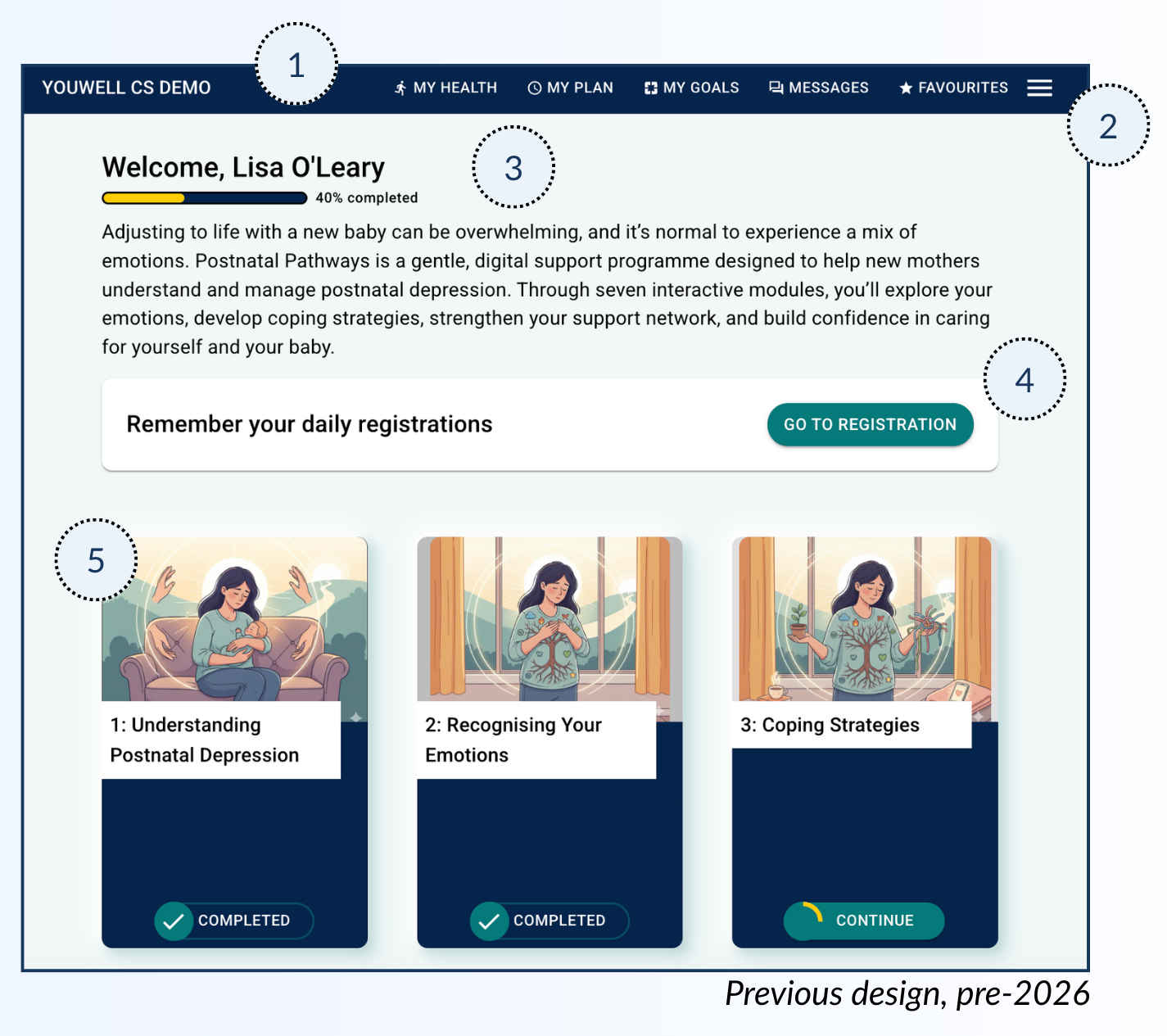
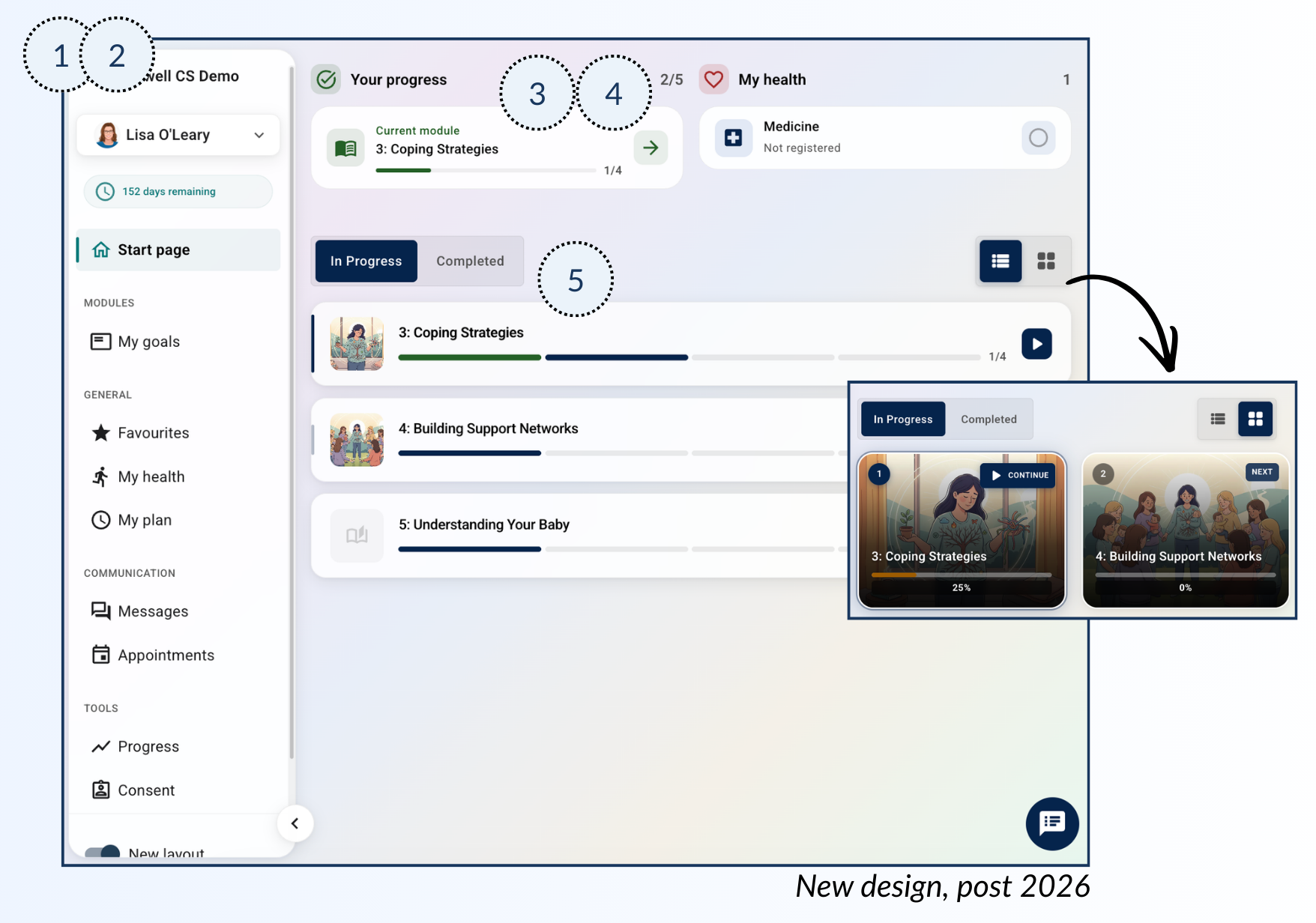
1) Header Menu
The header menu shows some selected functions, often those that are most used (for example Messages and Favourites), and those that are especially important for the current programme. It also shows the organisation’s logo if this is configured. This is often used as a shortcut to access the functions the patient is likely to use repeatedly.
2) Hamburger Menu
This menu is most relevant in the existing design (pre-2026), as it is combined with the main menu in the newer design. Here the patient can browse through all available functions and tools that they may use throughout the programme. They will find, among other things, Appointments, Consent (if activated), Profile, and other content pages here.
The patient can change the language on the page via this menu.
3) Programme & Progress
The patient can see a welcome message and/or a progress bar showing how far they have come through the programme. If a description is set in the programme, this is shown in the earlier design above the modules.
4) Registrations, Questionnaires, Appointments
Here there is a Call to Action-area where it is possible to see if there are any questionnaires that need to be completed, if there are any upcoming appointments or any health registrations that are missing. This is placed at the top of the page so that the patient can easily complete what is missing when they log in.
5) Modules
Here is an overview of the modules in the programme that the patient is working with. It will be indicated whether the module is completed or not, as well as the date for opening if a module is scheduled in the future. By clicking on the modules the patient gains access to content pages with text, videos, images, etc.
In the new design the modules are divided into two categories: In Progress and Completed. It is also possible to choose whether to view the modules as a list view or a card view.
Was this article helpful?
That’s Great!
Thank you for your feedback
Sorry! We couldn't be helpful
Thank you for your feedback
Feedback sent
We appreciate your effort and will try to fix the article