The patient application is the platform where patients complete the treatment programme they have been allocated. Here there is access to central functions such as appointments, messages, favourites and the content of the programme. It is also through this application that the patient communicates with the clinician, receives content and answers questionnaires during the treatment period. The functions and content in the patient application are to a large extent determined by the programme the patient has been allocated.
In 2026 we have released a new patient application design. Some will adopt the new design while others may retain the existing design. We refer to both designs in this article so that it is possible to see how the same functionality appears in both versions.
Content Pages
This is where the patients will see the content included in the modules within the programme. The content can be a combination of text, images, videos, questions, tasks and much more.
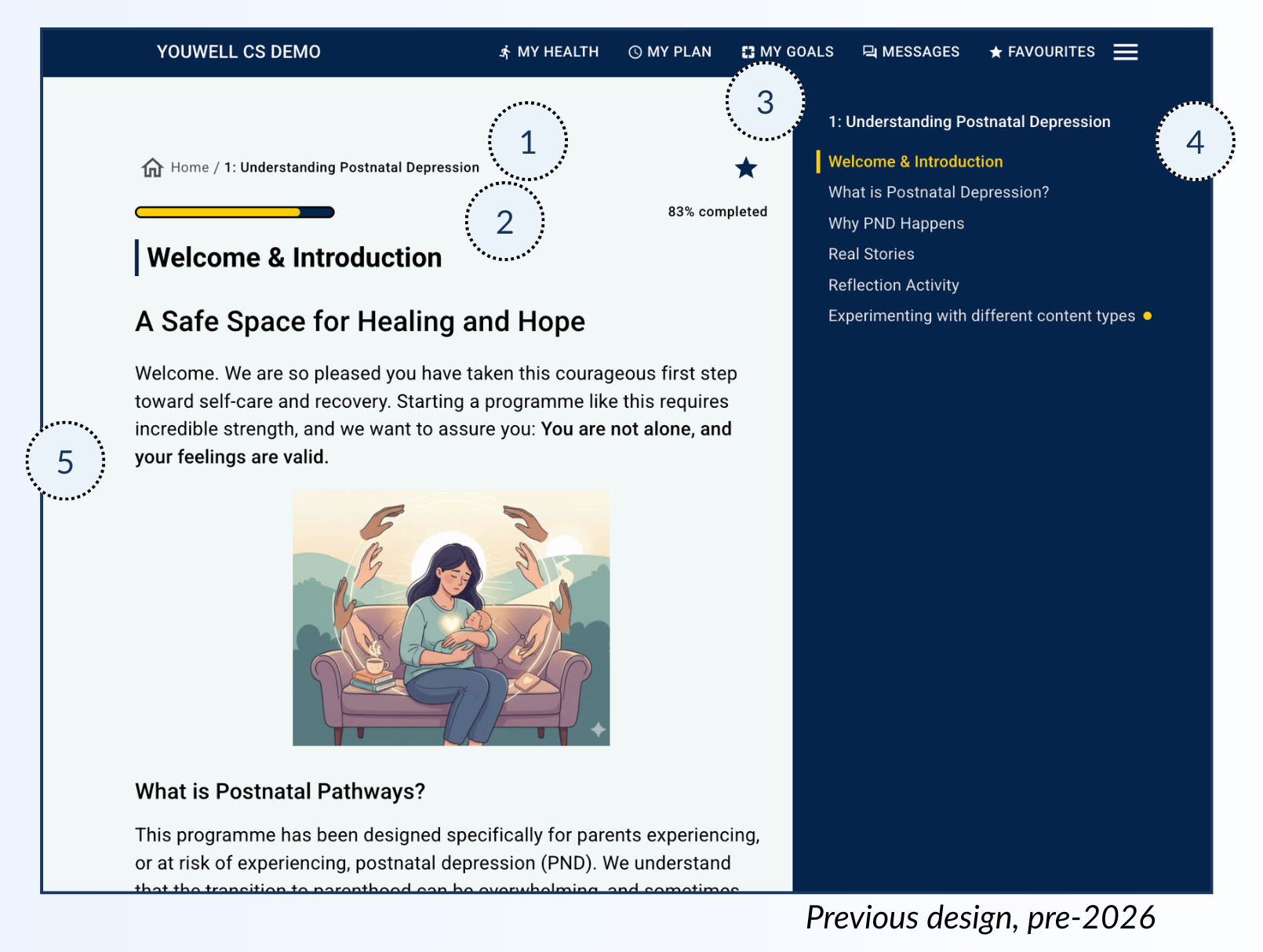
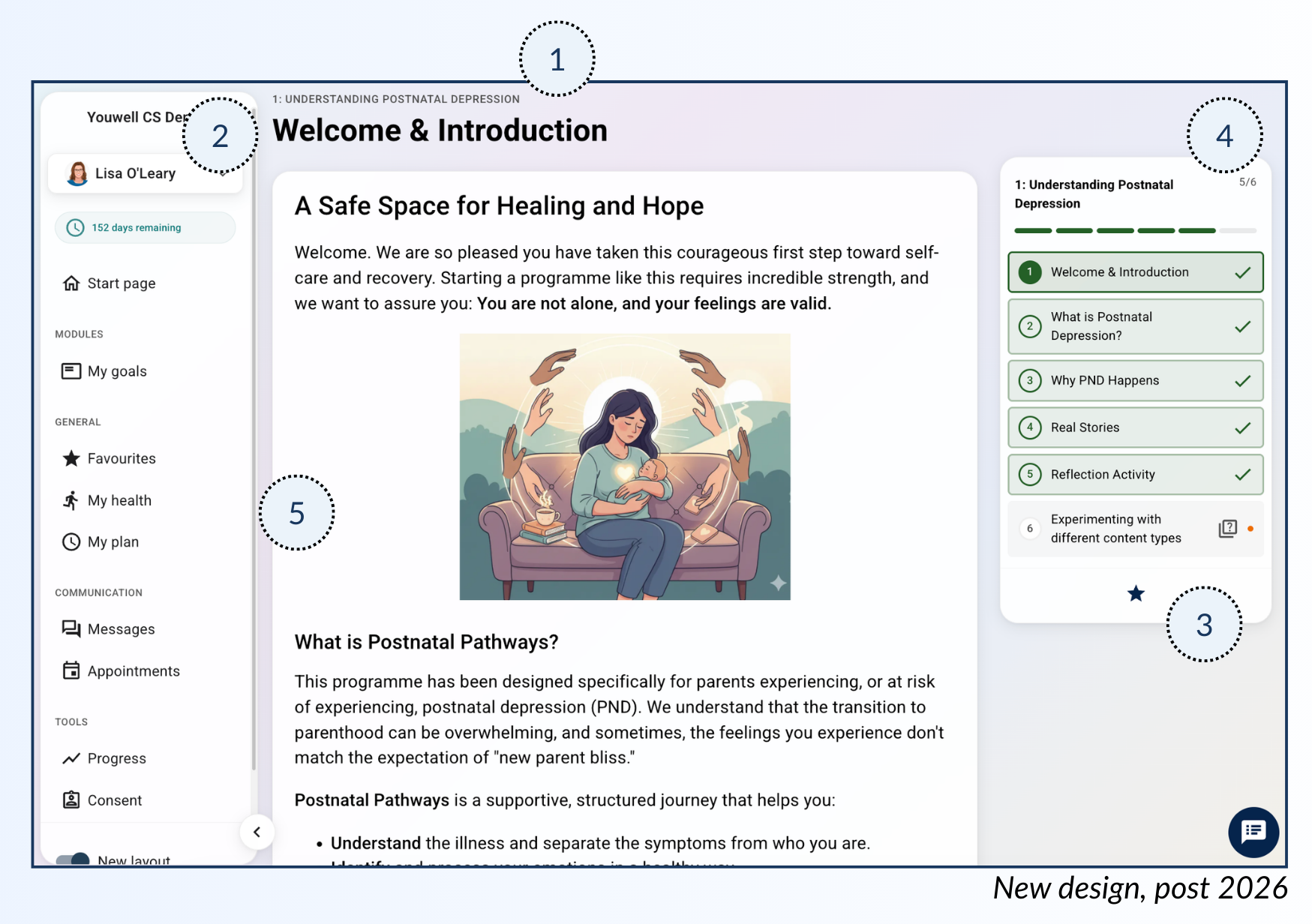
1) Module Title
At the top of the page the patient will see which module they are viewing, that is to say which module the current content page is a part of.
2) Page Title
This is the title of the current content page.
Once a patient has completed all required tasks or read through and gone to the next page, this page will be marked with a blue checkmark from the therapist portal to indicate that it has been completed.
3) Favourite
The patient can use the star icon to favourite certain content pages. They will then be made available as a shortcut under the Favourites-tab. This can be useful if a patient finds a certain page particularly impactful or useful and would like to return to it later.
You can read more about the Favourites tool here: Patient Application Favourites.
4) Page Overview
Here is where the patient can see and hop between different content pages within the current module. They will be able to see their progress through the module by monitoring which content page they are on in this sidebar.
In the newer design the patient can also see their progress through the module at the top of the sidebar and can see which modules are completed as these are marked in green with a checkmark.
5) Content
Here is the content itself, as designed in the CMS tool in the Youwell platform. The patient will be able to read the text here, watch any media files which are uploaded and complete any tasks/questions which are presented here.
Was this article helpful?
That’s Great!
Thank you for your feedback
Sorry! We couldn't be helpful
Thank you for your feedback
Feedback sent
We appreciate your effort and will try to fix the article