Programs involve Modules, Questionnaires and Additional content. This article describes how to create a module, add elements and the various types of elements that are available.
CONTENTS
Create a new module
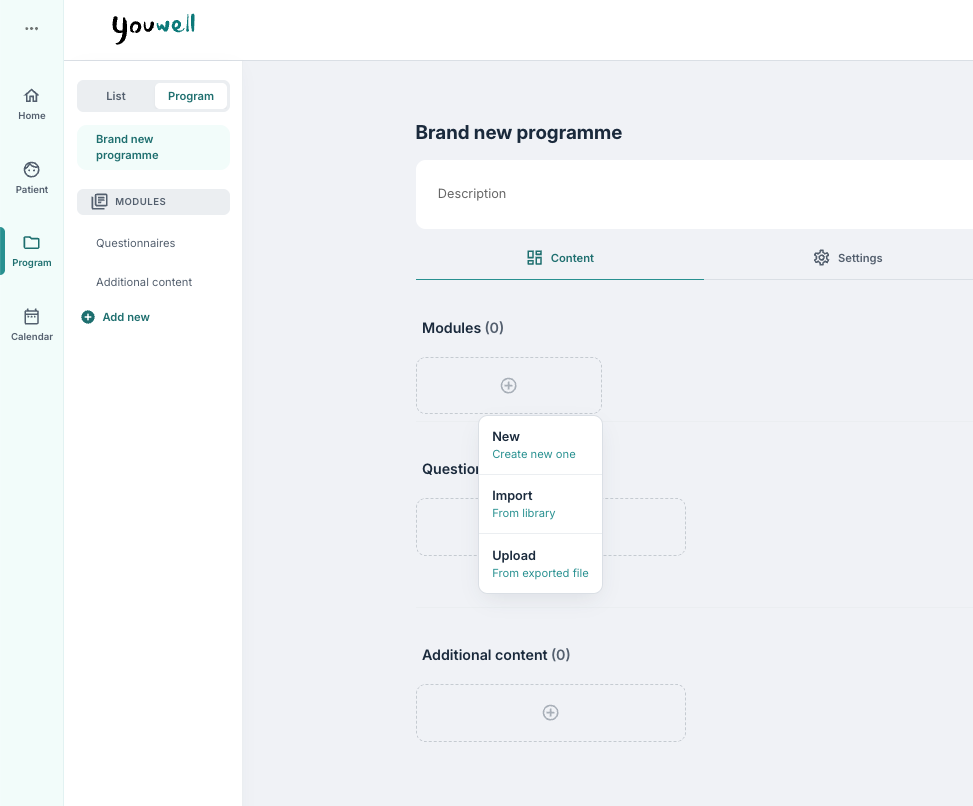
When creating a new module it is possible to create the module from scratch or to import some existing modules. The New choice opens the creation of a module from scratch, while Import gives the option to browse the library to import modules from there. Alternatively it is possible to upload a module if it has previously been exported as a json file.
The same applies to questionnaires, which can also be retrieved from the library. It is recommended to read the licence information before use of questionnaires. Some questionnaires may have additional costs.
When creating a new module it is possible to add an image, a title and a description.
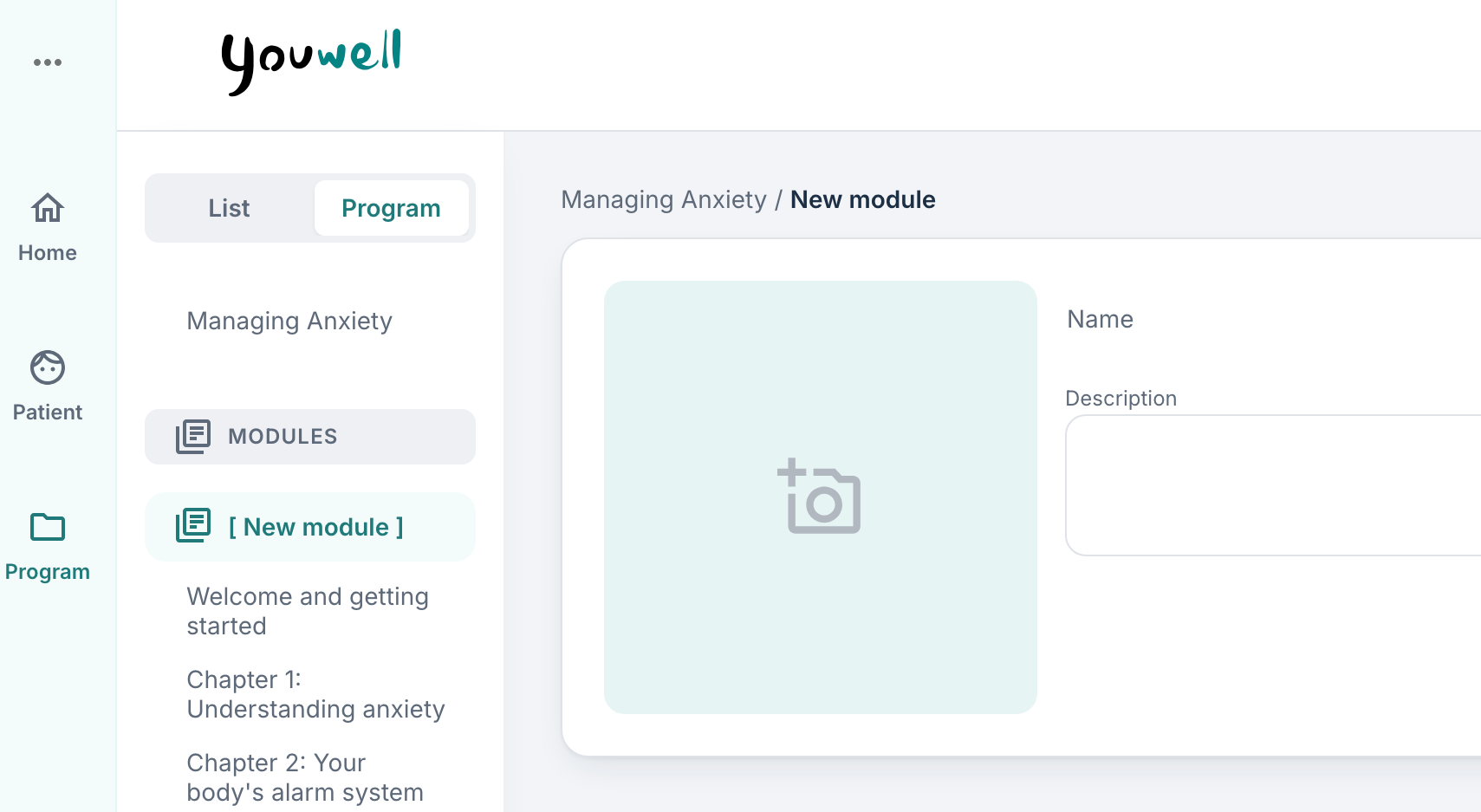
Images with at least 300px width and 200px height will adapt to the screen width in the patient application, and a 3:2 format often gives a good result. The description should preferably be 100–300 words and give a short overview of the module’s content with rich text formatting, for example bullet lists.
After this it is possible to add new content.

Content pages and elements
A content page is a page that is part of the module and that contains content elements. It is possible to add several elements on each page, and elements of different types.
Each page has a title that is displayed to the patient, as well as a version, and it is also possible to add additional settings for Workflow and Comments and notes.
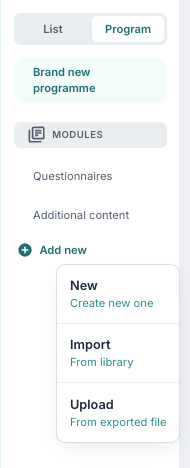
If some modules or content pages have already been started, it is also possible to use Add new in the function menu on the left to extend your program with more modules or pages:
Preview of pages and elements
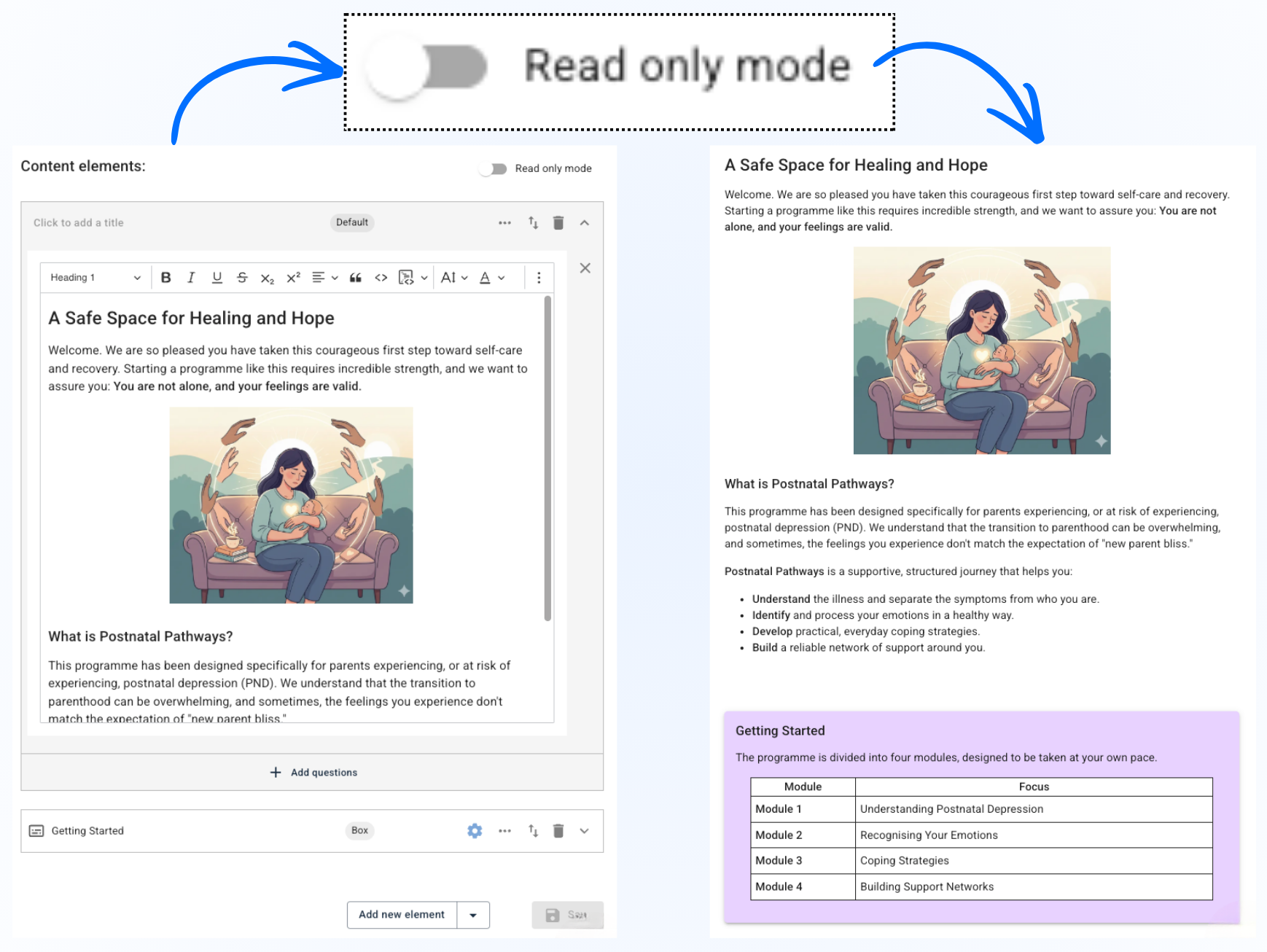
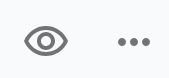
To see how the formatting on each element may look it is possible to use the Read only mode. It is also possible to use the eye symbol by the title on the content page to show a preview of all content on the page:
More settings for the content page can be found here: More settings on modules and content.
Different types of content elements
You can choose to add the following types:
Type of element | Specific type | Description |
|---|---|---|
| Standard elements | Standard | Text box/text field with rich formatting (can contain videos, images, links etc.) |
| Standard elements | Highlighted box | Text box/text field that is shown more emphasised in the patient application with a blue background |
| Standard elements | Card | Similar to highlighted box with smaller size and designed for shorter text |
| Standard elements | Read more | A popup window that contains text |
| Standard elements | Previous response | A dynamic field that shows previous responses from some questionnaires |
| Standard elements | Swipe card | A carousel block where there are several boxes that the patient can swipe through |
| Standard elements | Two-sided card | A card that can be switched by click, with different content on each side of the card |
| Standard elements | Media | Possibility for import of a video or sound file |
| Question elements | Questionnaire | A table where the patient can register different scores on statements or questions |
| Question elements | Quiz | Contains different types of questions with points and marking of correct or incorrect answer |
| Question elements | Choice bubbles | A view for multiple choice questions with bubbles for choice |
| Question elements | Blink | A graph that maps scores in four different categories |
| Question elements | Collapsible table | A table view where rows can be opened by click |
| Special elements | Varies | Elements that vary by account; it is possible to contact support for questions about these |
Settings on elements
On each element there are different settings that can be activated via the icons at the top of the box:
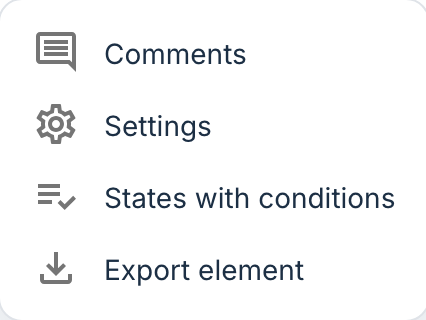
- Comments can be used to add a private note to content producers, for example to mark that an area is still under work.
- Some elements have Settings that can be customised if there is a need for more advanced adjustments. If advanced settings are not available, you will see no settings available.
- States with conditions can indicate that an element is shown based on previous responses from questions or questionnaires that have been added. It is possible to read more about this here: Conditional states.
- Export element provides the possibility for downloading a JSON file for use in other modules or programs.
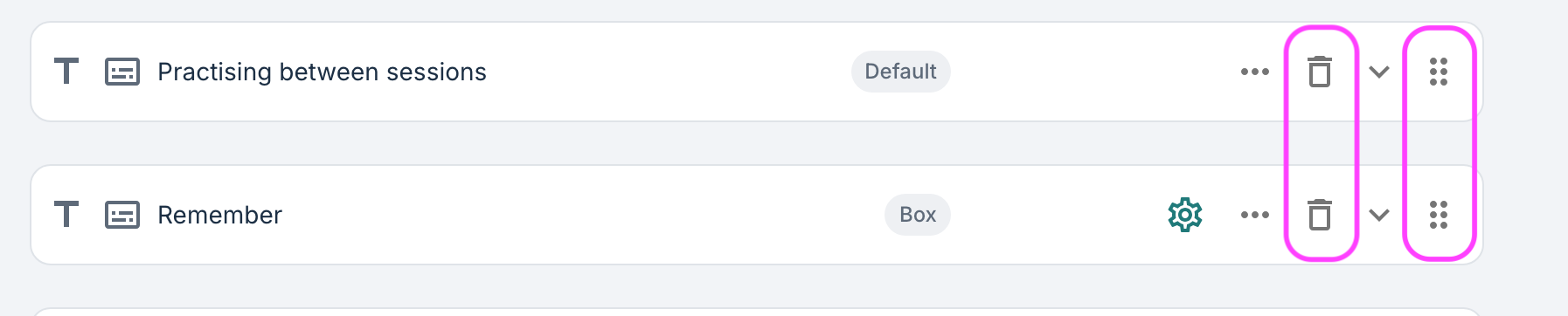
- The drag dots-icon allow elements to be moved up or down in the order they will be displayed to the patient.
- The trash icon removes the element.
Next steps
It is now recommended to begin creating some standard elements inside the module, as well as some question elements:
- For an overview of all types of standard elements, you may start here: Standard elements.
- It is also possible to create standard elements and question elements on the Questionnaires tab. Read more about the different types of question elements here: Questionnaires & question elements.
Was this article helpful?
That’s Great!
Thank you for your feedback
Sorry! We couldn't be helpful
Thank you for your feedback
Feedback sent
We appreciate your effort and will try to fix the article