Every element on the timeline has its own settings panel, and a card for conditional opening that is reached from the lock symbol on the element's row. Together these control when an element becomes available, what the patient sees it called, whether earlier content has to be completed first, and which reminders are sent.
CONTENTS
Element settings panel
Clicking an element name in the left-hand column opens the settings panel on the right. The panel header reads Settings followed by the name of the element. Clicking the same element again closes the panel.
The sections shown depend on the type of element. Questionnaires have a couple of options that modules and content pages do not.
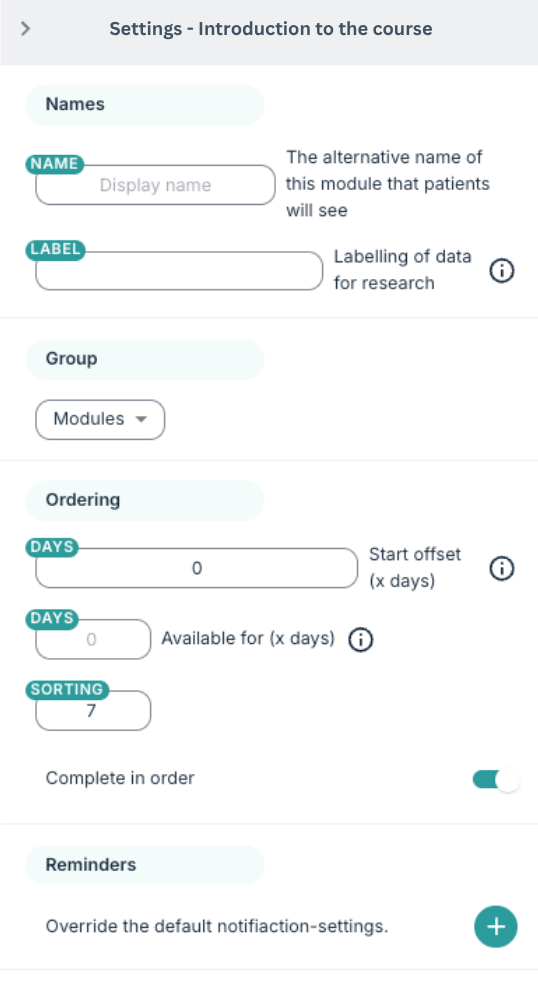 | 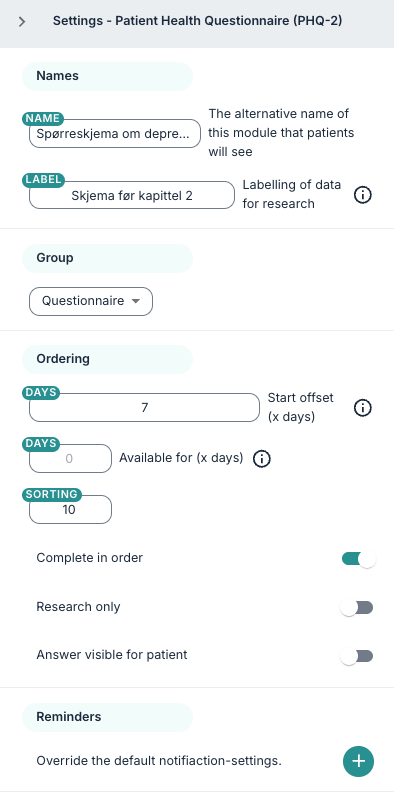 |
Names
- Display name – an alternative name shown to the patient instead of the name used internally.
- Label – a label used to identify the form or its data, for example for research purposes. Labels configured on the programme are offered in the list. Labels are described in further detail here: Labels.
Group
The element group determines how the element behaves and which section of the timeline it is drawn in. Changing the group in this list moves the element to the corresponding section.
Ordering
- Start offset (x days) – the number of days after the programme starts that the element becomes available. For a repeating element, several days can be given as a comma separated list, for example 1, 3, 6. Each number becomes one point on the timeline. This is the same value that changes when a point is dragged on the graph.
- Available for (x days) – how long the element stays available to the patient. Where this is set, the element is hidden again after the given number of days.
- Sorting – the position of the element within its section. This is the same order that changes when an element is dragged up or down on the timeline.
- Complete in order – see Conditional opening below.
- Research only – available on questionnaires. It marks the content as being for research purposes.
- Answer visible for patient – available on questionnaires. Activating this means the questionnaire response from the patient, once submitted, will be available for the patient to review in a Questionnaires tab in the patient app.
Reminders
You will also find a Reminders section, which overrides the default notification settings from the profile. The plus symbol adds a reminder, given as a number of days, and the bin symbol removes one. Several reminders can be added to the same element.
Where an element has no reminders of its own, the profile's Reminders for Questionnaires settings apply, as described in Program Timeline: Managing profiles.
Conditional opening
The lock symbol
A round lock symbol sits on each element's row, positioned at the day the element starts. It is shown solid when the element is set to be completed in order, and faintly when you hover over the row otherwise. Hovering over the symbol shows the tooltip Show dependencies.
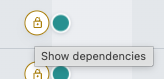
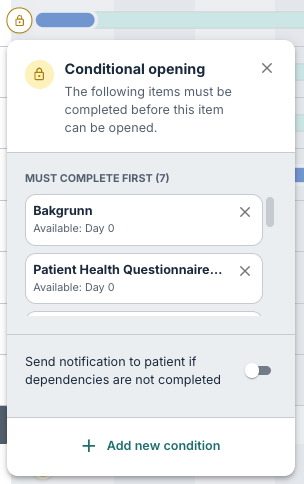
Clicking the symbol opens the Conditional opening card, with the explanation The following items must be completed before this item can be opened. Clicking anywhere outside the card closes it again.
Complete in order
You can use Add new condition to enable some dependencies on the element, and this works very similarly to the Complete in order switch in element settings panel. When activated, the card lists the elements the patient has to complete first, under the heading Must complete first with the number of items. Each item is shown with its name and the day it becomes available, for example Available: Day 7.
The dependencies are the elements placed above this one in the same section, sorted by their start day. Moving an element up or down changes which items it depends on, so the sort order and the dependency list stay in step.
Where Complete in order is switched on, the element is not visible in the patient application until the earlier items have been completed, even if its start day has passed. On the timeline this is why the lock symbol is drawn solid.
Notifying the patient
The card also carries a Send notification to patient if dependencies are not completed toggle. Switching it on reveals a field, Send reminder after, given in days. This sets the reminder on the element, and the same value is shown in the Reminders section of the settings panel.
Where settings come from
A value used by an element can come from several levels. The element's own setting is used where it has one. Otherwise the profile's setting applies, then the programme's, then the organisation's, and finally the platform default.
The Profile Settings box below an expanded profile shows how many settings the profile overrides, and lets those overrides be reviewed. This is described in more detail here: Program Profile Settings.
Was this article helpful?
That’s Great!
Thank you for your feedback
Sorry! We couldn't be helpful
Thank you for your feedback
Feedback sent
We appreciate your effort and will try to fix the article