When a program is created, it is possible to assign various statuses and categories to the content you create. This can be used to send the content on to another content producer or an administrator on the account who can verify and give feedback on the pages and elements being worked on.
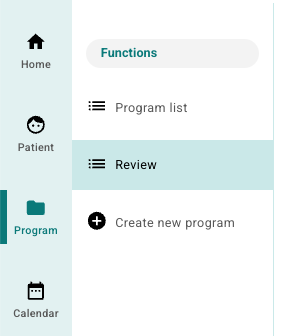
The Review subsection is found on the Program tab for those with content producer or administrator access.
Add Labels under Workflow
For some content pages to be made visible and sent on to others for approval, it is possible to use the Workflow area on each content page. This area is found below where version is entered and above where a comment is entered when a content page is being worked on.
Using the tool here is not obligatory, but it can provide an overview of which pages are ready for publishing and where more work is needed.
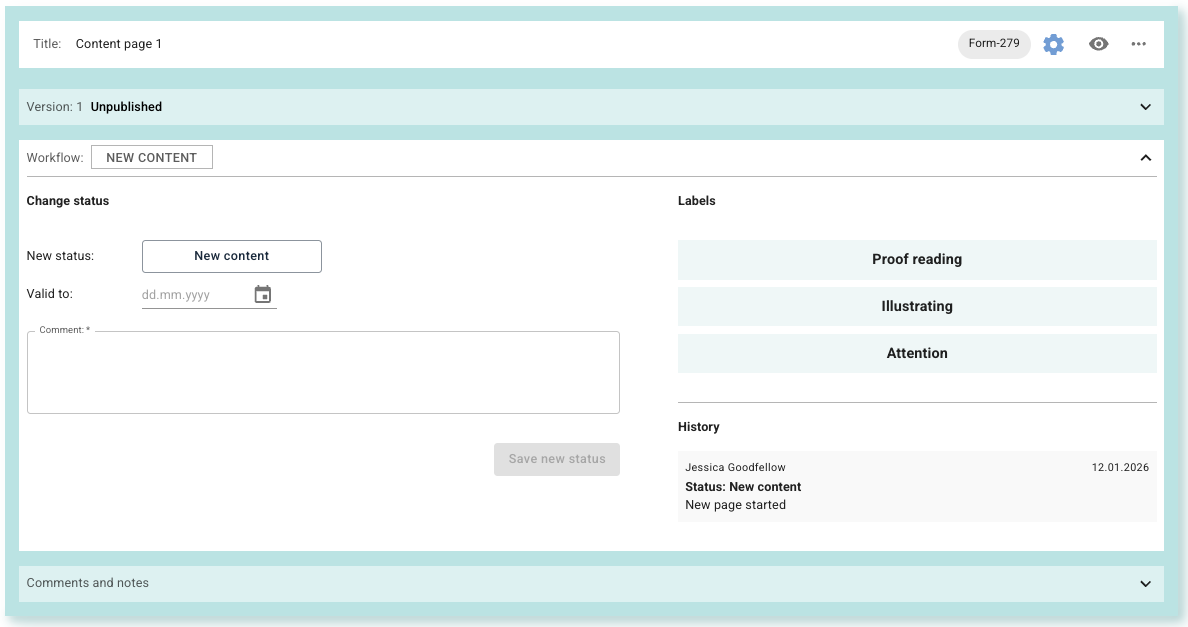
Under Change status it is possible to choose from: New content, In review (editor), Soon expiring, Peer-review requested, In peer-review, Ready for approval, Expired and Approved. Select the status that makes most sense for where the content page is in the workflow.
It is also possible to enter a date the content is valid until; if this is omitted, no expiry date will be indicated. When the status is changed, it is common to enter a comment for the change to be registered. It is possible to add some Labels (for example Proof reading, Illustrating and Attention) if relevant.
Under History earlier statuses and changes to the content are displayed.
Content for Review
The status and tags that have been registered on the various content pages are now shown to the administrator or other content producers on the Review tab. Here is an example where the administrator has access to many different content pages from various programs:
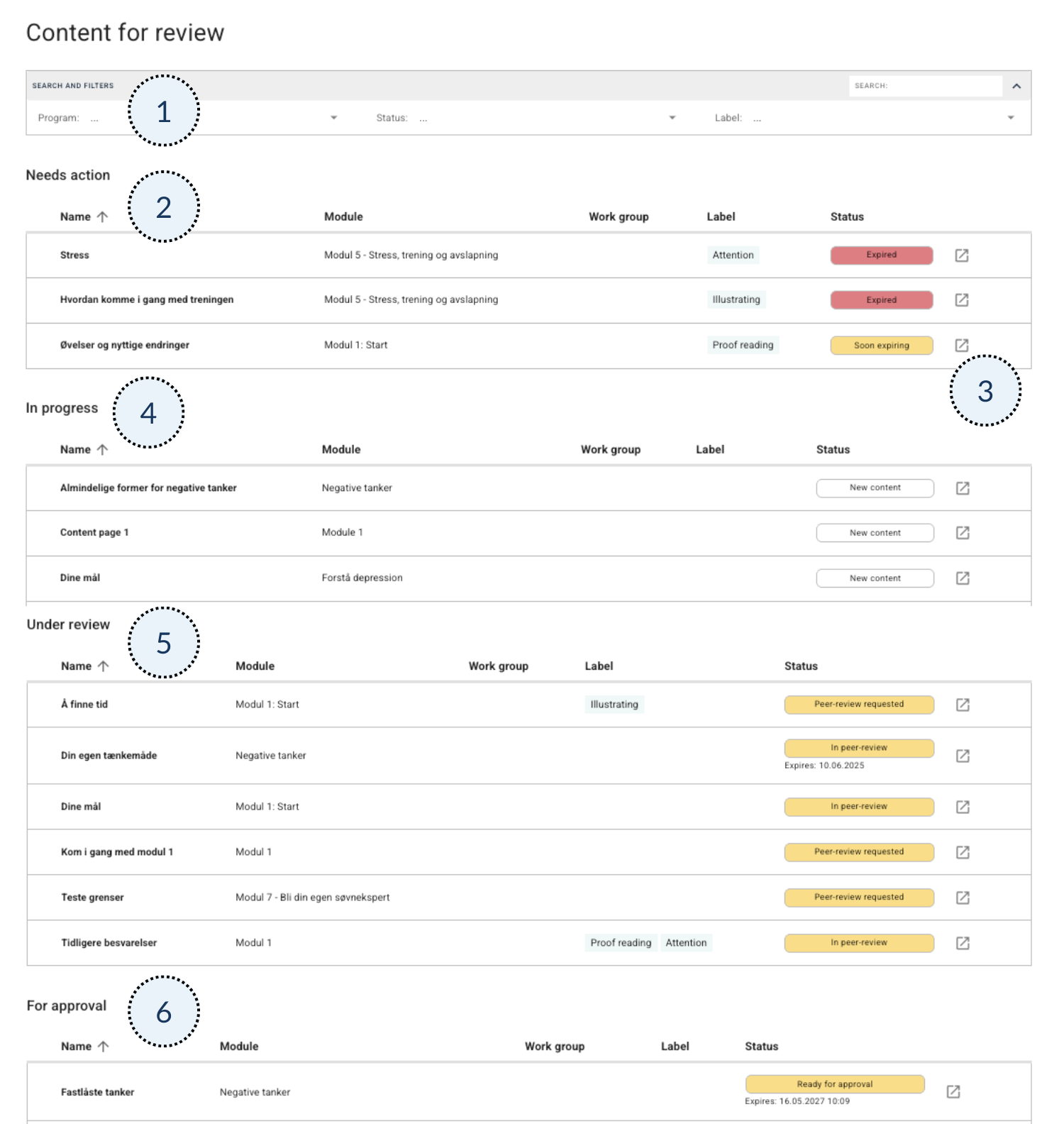
- Search and filtering – It is possible to sort the list by Program, Status or Tag. It is also possible to search for the name of the content page via the search box to the right.
- Needs action – Content that ends up here needs a review and has highest priority since the expiry date is approaching or has already passed. In the table the content is shown sorted by Name, but it is also possible to sort by Module, Work Group, Label or Status.
- Open the content – Use the arrow icon to open the content in a new tab. Here there is a shortcut to see a preview of the content so that it is easy to assess whether it is approved or not.
- In progress – This is a table similar to Needs action, but here it shows only content that is registered as New content.
- Under review – The list here contains content that is registered with status Peer-review requested or In peer review.
- For approval – Here is the list of content that has been sent for approval or that is registered as approved.
At the bottom of the page there is a button to export the list, which provides a CSV file with information from the page. This file can contain columns such as Name, ModuleName, ProgramName, WorkflowStatus, WorkflowStatusExpire, WorkGroups and PreviewLink. The CSV file can be used to share previews with people who do not have a user in the organisation, for example a peer who is to review the content.
Was this article helpful?
That’s Great!
Thank you for your feedback
Sorry! We couldn't be helpful
Thank you for your feedback
Feedback sent
We appreciate your effort and will try to fix the article