Under the Reporting tab it is possible to retrieve some datasets in CSV or XLS format from Data export. Here there are various datasets for analysis and for saving your favourites. The Reporting function is available for administrators, managers and researchers.
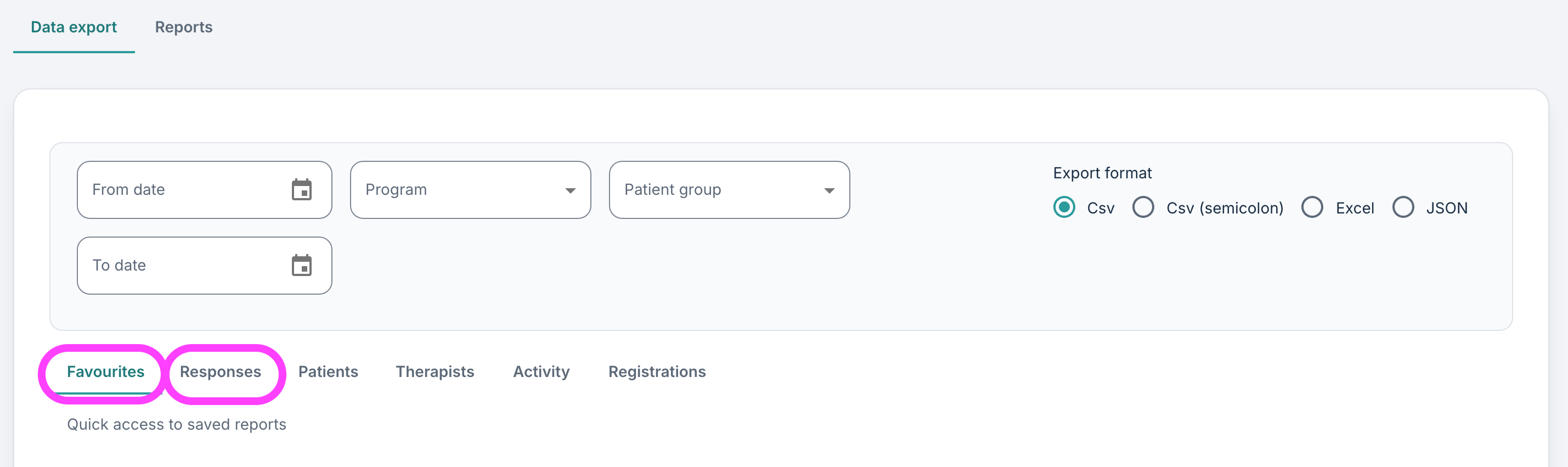
Favourites
This tab is the first that is shown under Data export, and it contains a list of various reports that have previously been saved/bookmarked. It is possible to save some favourites when new exports are created from the Responses tab.
On the Responses page it is possible to specify a report name and then save so that the report is registered as a favourite:

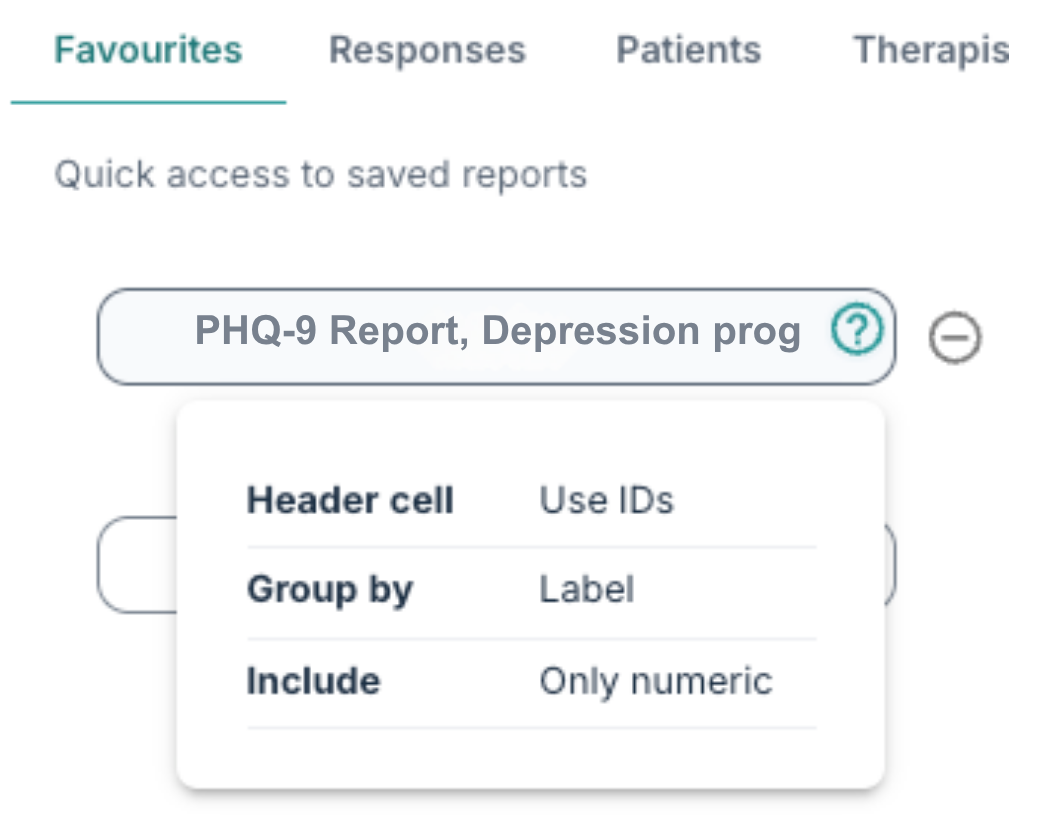
When some favourite buttons are configured, they provide access to the file with the same settings and filter choices that were used earlier. The question mark icon provides an overview of which settings were previously specified.
Responses
Here it is possible to export results from responses on one or more questionnaires. The filters at the top of the page can be used to specify which data are included in the export.
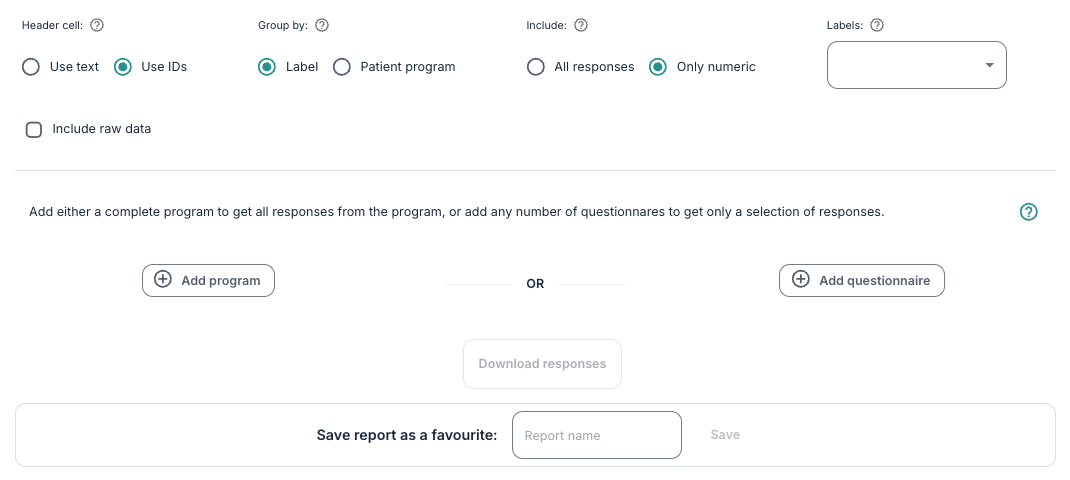
- Under Header cell it is possible to choose between using text as the column name or Use IDs (meaning only question keys and form IDs).
- Under Group by it is possible to choose whether data will be grouped by label or patient program.
- Under Include there are the alternatives All responses, including text fields, or Only numeric.
- It is also possible to filter based on the questionnaire label under Labels.
- If Include raw data is ticked, the export will contain a JSON string that shows the whole response as stored in the database.
If the choice All responses is selected, some free-text fields may be included, and they may contain personally identifiable information, so the file should be handled in accordance with standard data protection regulation.
To export all questionnaires in a program the option Add program can be used. For exports of specific questionnaires the option Add questionnaire can be used. Several questionnaires can be included in the same file by using the plus symbol.

After the settings have been defined, the file with responses is opened by using Download responses. The configuration that has been specified will then apply to all questionnaires in the file.
It is possible to Save the report as a favourite so that it will appears under Favourites with the given settings.
Structure in the export
When a data export has been downloaded in XLS format, the file consists of several sheets. The first sheet comprises the responses based on the configured settings. The second sheet provides an overview of the columns that are included in the export.
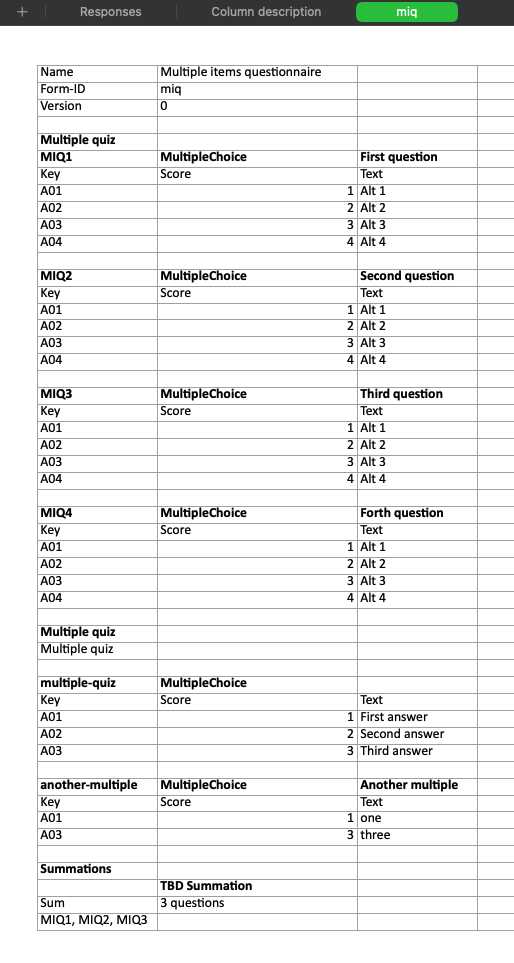
Thereafter there is a codebook per version of each questionnaire that is included in the export. The version comment/text will also be displayed at the top, next to the version number. This provides a summary similar to that which is found under Questionnaire print in the program. Here a list is shown with the questions that are included in the export, data type, corresponding question key and score value as well as summations.
An example with a simple questionnaire with several single-choice and multiple-choice questions is shown in the illustration below:
Was this article helpful?
That’s Great!
Thank you for your feedback
Sorry! We couldn't be helpful
Thank you for your feedback
Feedback sent
We appreciate your effort and will try to fix the article