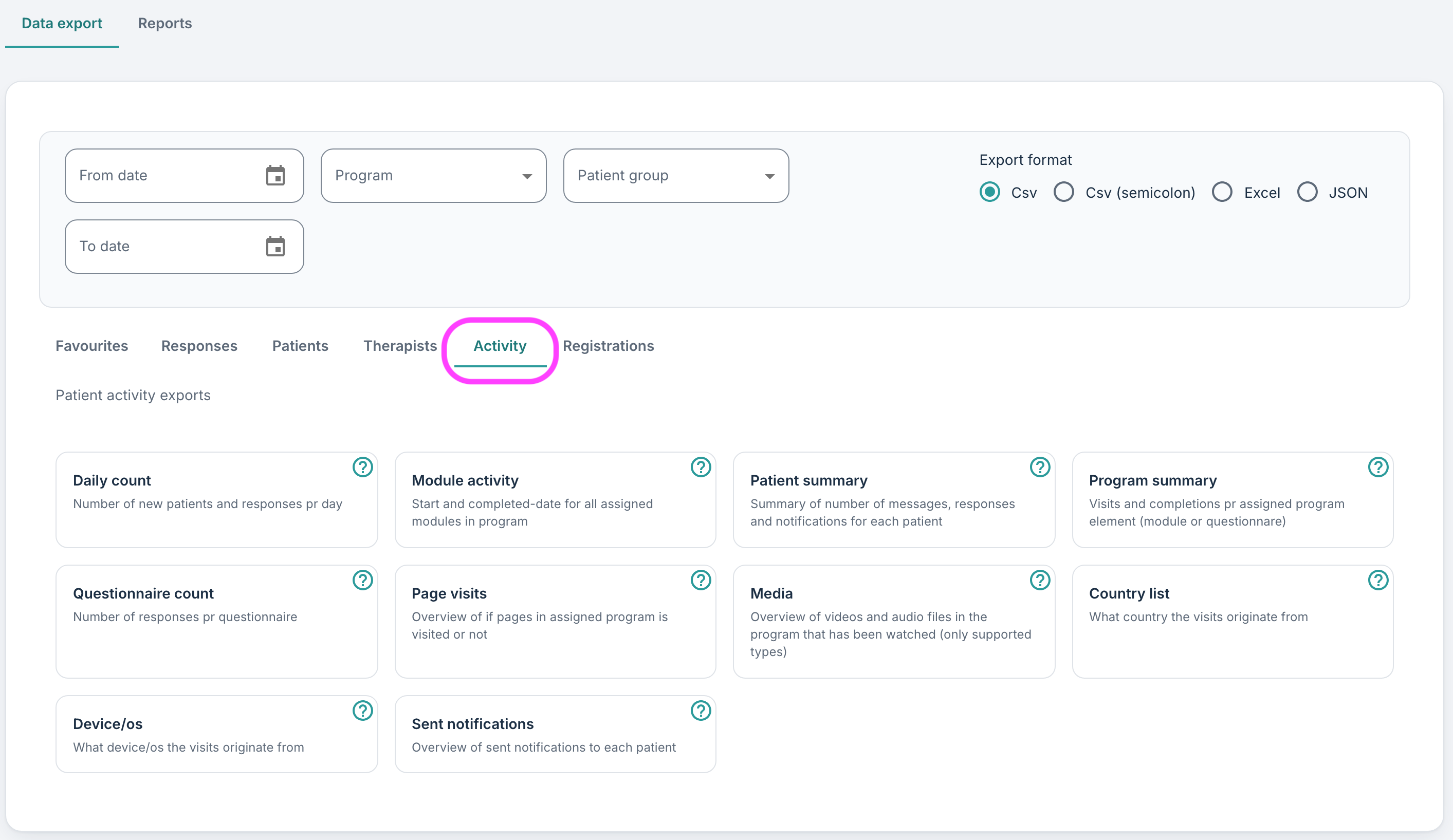
Here it is possible to export reports about various activities, such as logins, page visits, notifications sent and so on. This can be used to gain some insight into which programmes and modules have been completed by the patients.
CONTENTS
- Daily count
- Module activity
- Patient summary
- Program summary
- Questionnaire count
- Page visits
- Media
- Country list
- Device/OS
- Sent notifications
Daily count
It is possible to extract the number of sessions, responses and newly created patients per day from this list. The columns include:
- Date (Date)
- Sessions (Number of sessions for that day)*
- Responses (Number of new responses submitted that day)
- NewPatients (Number of new patients registered in the organisation that day)
*A session means one continuous visit to the solution. It starts when a user opens the solution and ends when they leave it or are inactive for a while.
Module activity
Here it is possible to track when the patients have started the different modules in their programme. Select a programme in the filters on the Data export page to download a list of all patients who have been assigned the programme. Then it is possible to see when they started the programme, the patient group they have been assigned, the programme profile, and a timestamp under each module for when they started it, performed some activities (for example responded to some forms) and when the module was completed.
- PatientId (The ID of the patient they are assigned when the profile is created)
- StartDate (The programme’s start date)
- PatientGroup (The groups that the patient belongs to)
- ProgramProfile (The programme profile the patient is assigned)
- Module-X:Assigned (When the module was assigned to the patient)
- Module-X:Started (Date of first activity in module X, for example opening a content page)
- Module-X:Completed (Date when all required tasks in the module are completed)
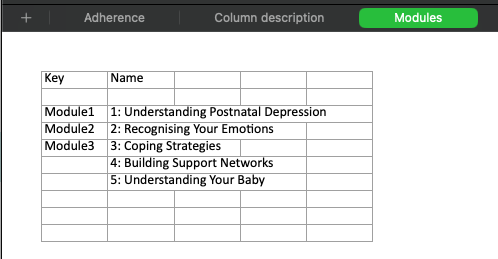
Where it says Module-X in the list above, it can either show the name of the module concerned or the module ID if present. In addition, there is an overview of all module IDs on the third sheet in the Excel file. This serves as a type of codebook so that it is easy to check which IDs correspond to which modules.
Patient summary
Here it is possible to see the number of messages sent to and from the patients, the number of elements assigned and questionnaires/forms completed, as well as notifications for the patients. The columns in the extract include:
- PatientId (The ID of the patient they are assigned when the profile is created)
- PatientGroup (The groups that the patient belongs to)
- PatientCreated (When the patient was created)
- LatestActivity (Timestamp of when the patient last performed any activities in the application in local time)
- MessagesSent (Number of messages the patient has sent to the clinicians)
- MessagesReceived (Number of messages the patient has received from the clinicians)
- AssignedElements (Number of elements assigned to the patient)
- CompletedElements (Number of elements the patient has completed)
- QuestionResponses (Number of questions the patient has answered)
- Notifications (Number of notifications attempted to be sent to the patient)
Program summary
This list shows the number of visits and the number of completed pages of each module for the programmes filtered for. It contains:
- Program (Name of the programme)
- Module (Title of the module; note that questionnaire pages are indicated as questionnaires and additional content is content)
- Page (Name of the content page)
- Visited (Number of patients who have visited the page)
- Completed (Number of patients who have completed the page)
Questionnaire count
Here it is possible to see the number of responses submitted per form or question element. The columns include:
- Name of form (The questionnaire name)
- Module (Module where the form is located, or it will say questionnaires if it is outside a module)
- Program (Name of the programme)
- SubmittedResponses (Number of responses that have been submitted by the patient)
- UnsubmittedResponses (Number of responses not submitted by the patient, that is when the patient did not click “continue” or “go forward” in the application)
Page visits
Here it is possible to see the number of pages that each patient has visited within a specific programme. A programme must be selected in the filters to retrieve the list. The report shows each patient as a separate row with their ID, as well as their patient group and when they started the programme. Then it shows a list of all content pages across, where the module name concerned and the title of the content page are shown. It is marked with “1” if the patient has visited the page.
Media
If the Media element type is used, it is possible to see which videos and audio files have been viewed with this export. This export will only be populated if Media elements are used in the programme. The columns included:
- Patient-ID (The ID of the patient they are assigned when the profile is created)
- ProgramStartDate (The date the patient started the programme)
- Video-X (The progress, as a percentage, which the patient has made through the given file)
- Video-X:ProgressDate (The date at which the highest progress was first recorded)
When displaying progress through a video file, if the patient has viewed for example 60 seconds of a film which lasts 1 minute 30 seconds, the report would display 67 as the viewing percentage. Note that if the same film or sound file is rewatched/listened to again, the highest progress achieved will be recorded and will overwrite previous entries, and the ProgressDate will be updated accordingly.
Country list
It is possible to see which countries people have been in when they have visited the page. A list is generated with countries and then the number of visits per country.
Device/OS
Here it is possible to see which operating systems and devices have been used to visit the page. The columns are:
- DeviceType (Whether it is mobile or PC that has been used)
- OperationSystem (Operating system used)
- Browser (Browser used, for example Chrome, Safari, Edge, Firefox)
- Count (Number of visits from each category)
Sent notifications
Here it is possible to see an overview of notifications that have been sent out to the patient. The columns include:
- PatientId (The ID of the patient they are assigned when the profile is created)
- NotificationType (Type of notification that was attempted to be sent)
- CreatedDate (Date the notification was created)
- StatusDate (Date the notification was sent)
- Channel (Channel through which the notification was sent)
- NextActivity (Date when the next activity took place after sending the notification)
Was this article helpful?
That’s Great!
Thank you for your feedback
Sorry! We couldn't be helpful
Thank you for your feedback
Feedback sent
We appreciate your effort and will try to fix the article