Some appointments may require the patient to confirm certain consents or questions before attending, for example when a group session will be recorded, when a video call involves sensitive material, or when a cancellation policy needs to be acknowledged. Consent can be configured per appointment, and is separate from the programme-level consent a patient signs when starting a treatment programme.
CONTENTS
Enabling consent on an appointment
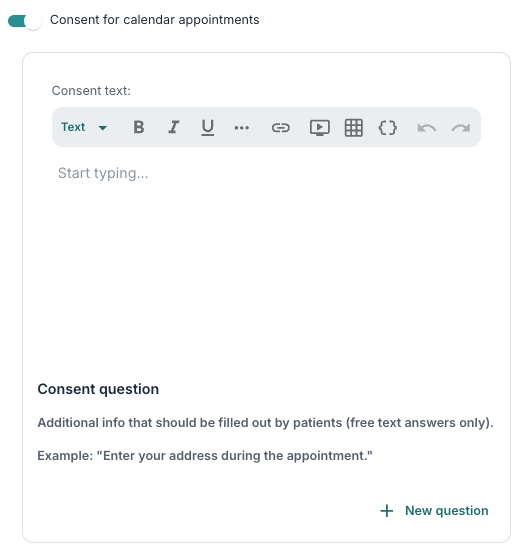
In the appointment form (or the template event form), you will notice a Consent for calendar appointments toggle at the bottom. Upon activating, two inputs appear:
- Consent text — a rich-text field for the information the patient must consent to. You could use it to describe what will happen, whether the session is recorded, and the cancellation policy.
- Consent questions — optional questions the patient answers. Each has its own text and a Required checkbox. Required questions must be answered before the patient can register or join.
Note that were you to remove a linked calendar from an appointment during setup, the consent option and any custom questions will be cleared with it, so you should check the consent section after changing linked resources.
What the patient sees
The view for the patient will depend slightly on the type of appointment in question.
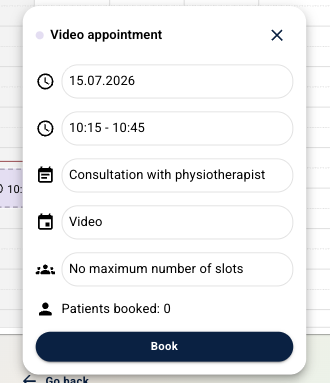 | 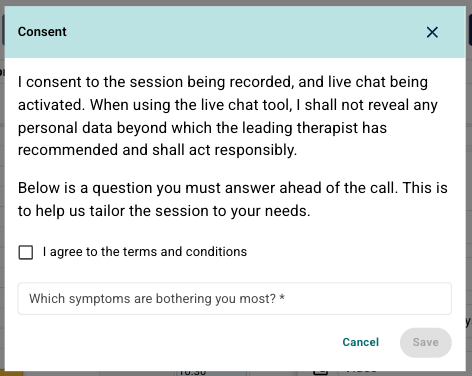 |
- For an optional appointment, the Book button first opens the consent form. The patient reads the text, answers any questions and confirms; the registration is then complete.
- For a mandatory appointment, the patient is already enrolled but sees a Consent button in the appointment detail. Answers can be given any time before the appointment.
- For video appointments, the patient cannot join the call until any required consent questions are answered. If they select the Join call button before answering the questions or confirming the consent field, a popup will display first.
For optional appointments, a clinician can also register a patient from the Calendar tab on the patient page, for example when consent is given in person during a visit. Selecting Register patient appointment opens the same consent form the patient would see, and it must be completed before the registration is saved. For mandatory appointments, consent can only be given by the patient in the app. Answers are stored separately for each appointment and each patient.
Reviewing consent answers
In the case of optional appointments, you can select Details from the appointment's calendar popover to open the participants panel. Each registered patient row shows whether consent has been given and, if questions were configured, the answers submitted.
Was this article helpful?
That’s Great!
Thank you for your feedback
Sorry! We couldn't be helpful
Thank you for your feedback
Feedback sent
We appreciate your effort and will try to fix the article